Configure Reasons for Creating Inventory Blocks and Maintenance Requests
Stay is enhanced to give properties the ability to require selection of a reason when creating Inventory Blocks and when creating Maintenance Service requests. Users can also configure whether each reason requires a maintenance request to be created when the reason is selected for an inventory block.
Inventory block reasons can be created at the customer level and property level. Reasons created at the customer level are made available for all properties and can be made active or inactive based on the property’s preference.
The reasons selected when creating an inventory block for a room are displayed in the following screens:
-
Rooms Management ➜ Inventory Blocks
-
Tape Chart screen (Dashboard ➜ Tape Chart)
-
Out of Order Rooms Report
-
Room Activity Log (Rooms Management ➜ Room Activity Log)
The reasons selected when creating Maintenance Service Requests is displayed in the following screens:
-
Service Requests Grid in the Reservation Summary section (Reservation Summary ➜ SVC)
-
General Maintenance Requests section in the Maintenance screen (Rooms Management ➜ Maintenance ➜ Home)
-
Unassigned Service Requests and Assigned Service Requests grids (Rooms Management ➜ Maintenance ➜ Assign)
-
Room Activity Log (Rooms Management ➜ Room Activity Log)
The implementation of this feature affects various screens and areas in Stay, those of which are detailed as follows.
Feature Setting
The following new feature setting has been added:
-
Name: Reasons for Inventory Blocks
-
Value: Must be Enabled
-
Comments: License is not required.
Permission
The following permissions are added, that allows users to access the Reasons for Inventory Blocks/Maintenance Requests screen:
-
StayWriteTenantInventoryBlockMaintenanceReasons
-
StayWritePropertyInventoryBlockMaintenanceReasons
These permissions are added to the following roles by default:
-
System Administrator
-
Stay Hotel Manager
-
Stay Hotel Supervisor
-
Accounts Receivable Manager
Reasons for Inventory Blocks/Maintenance Requests Screen
-
The following details for the created reasons are displayed in this screen:
-
Reason: Displays the reason for creating inventory blocks/maintenance requests.
-
Code: Displays the code for the reason.
-
Inventory Blocks: Displays the selected inventory blocks.
-
Maintenance Requests: Displays the selected maintenance requests.
-
Description: Displays the description for the reason.
-
Level: Displays if the reason is configured at the customer level or property level.
-
Status: Displays if the reason is in active or inactive state.
-
-
Users can search for a reason using Reason or Code.
-
Users can filter reasons using the following options:
-
Inventory Blocks
-
Maintenance Requests
-
Level
-
New Inventory Block Screen
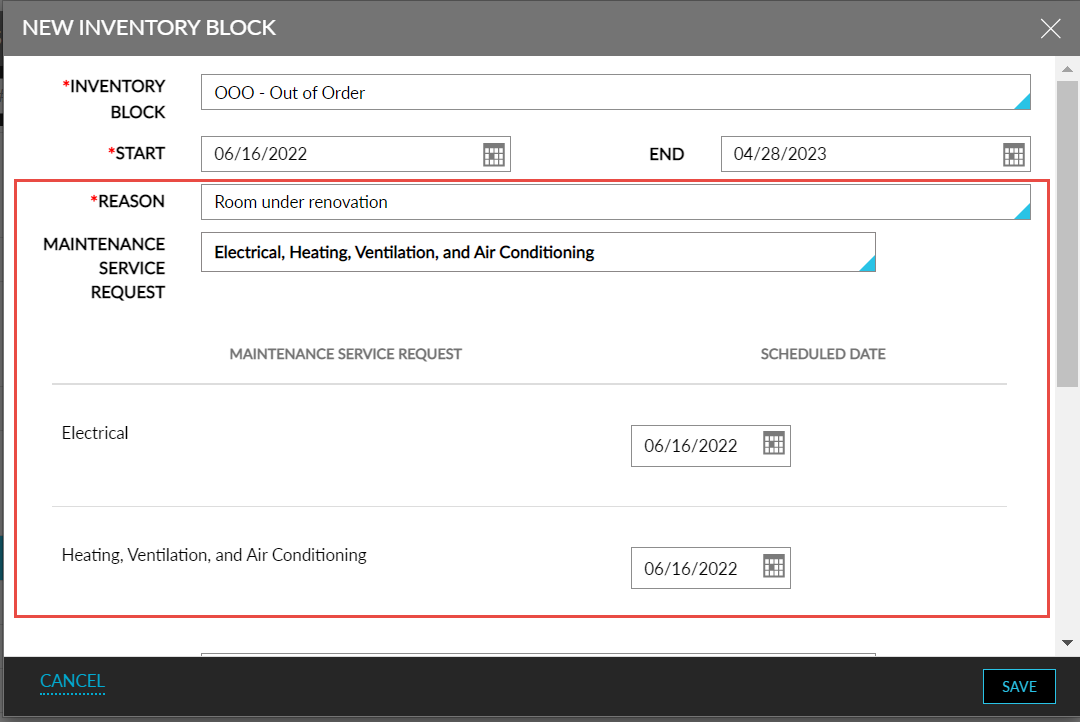
The following changes are made to the New Inventory Block screen:
-
The New Status label is changed to New Inventory Block.
-
A new drop-down list, Reason, is added. This is a mandatory field that allows users to select a reason for creating the block. This field will be disabled if there are no active reasons configured. If there is only one reason available for the inventory block, the reason will be prepopulated.
-
A new multi-select drop-down list, Maintenance Service Requests, is added below the Reason field. This field will display the applicable pre-selected service requests based on the reason selected. This is an optional field. If there is no reason to be selected, the Maintenance Service Requests drop-down list will display all the maintenance service requests from which the users can select the required requests. Users can also schedule the date and time for the selected Maintenance Service Requests.
A grid below the Maintenance Service Requests field displays the selected maintenance service requests and the scheduled date as the start date of the inventory block. Users can modify the scheduled date and time within the date range of the inventory blocks.
Edit Inventory Block Screen
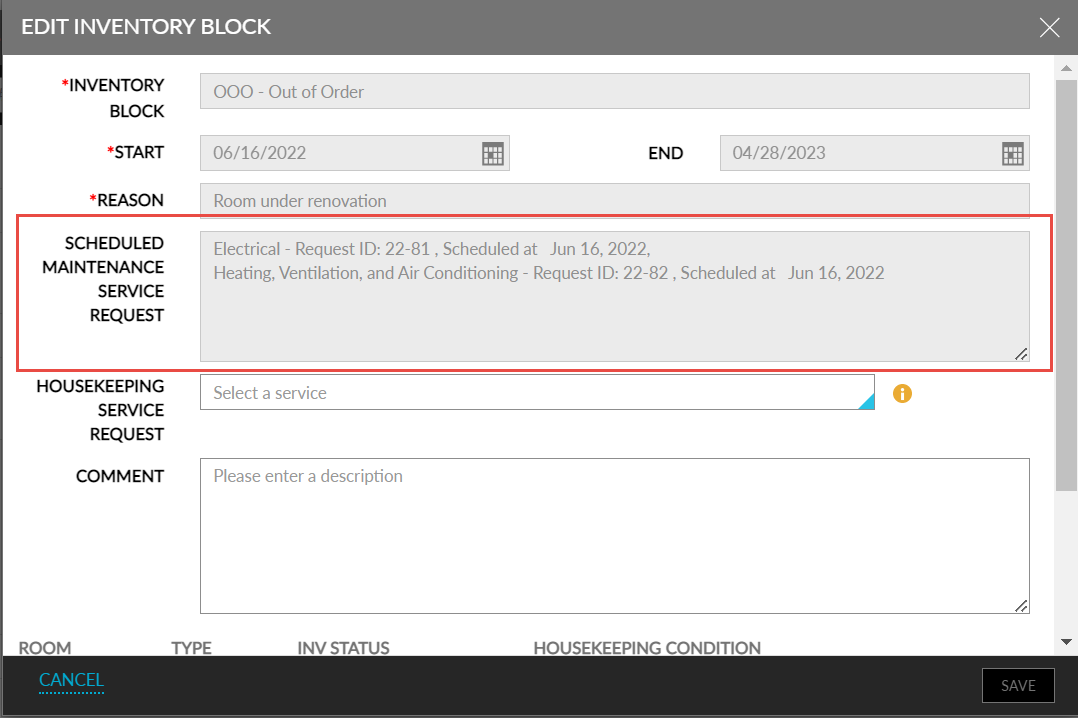
The following changes are made to the Edit Inventory Block screen:
-
The following fields are disabled:
-
Inventory Block
-
Start date and End Date
-
Reason
-
Maintenance Service Request
-
-
A new field, Scheduled Maintenance Service Requests, is added that displays the maintenance requests created when creating the Inventory Blocks. The requests are displayed in the following format:
Name of the service request followed by the ID and the scheduled date of the request. For example, Heating, Ventilation, and Air Conditioning: Request 22-7 Scheduled at 11:43 | Dec 02, 2022
-
A new drop-down list, Reason, is added to the Request Service screen. This is a mandatory field that allows users to select a reason for creating the block. This field will be disabled if there are no active reasons configured. If there is only one reason available for the inventory block, the reason will be prepopulated.
-
The Notes label is changed to Comments and the Scheduled Date label is changed to Scheduled Date & Time.
-
When users modify a maintenance service request that was created by selecting a reason, the following fields are disabled in the Edit Services screen:
-
Area
-
Building
-
Room
-
Category
-
Service
-
Reason
-
Users can continue to edit the other fields (existing functionality)
-
-
When users modify a maintenance service request that was created without selecting a reason, the following fields are disabled in the Edit Services screen:
-
Area
-
Building
-
Room
-
Category
-
Users can continue to edit the other fields (existing functionality)
-
Housekeeping Screen
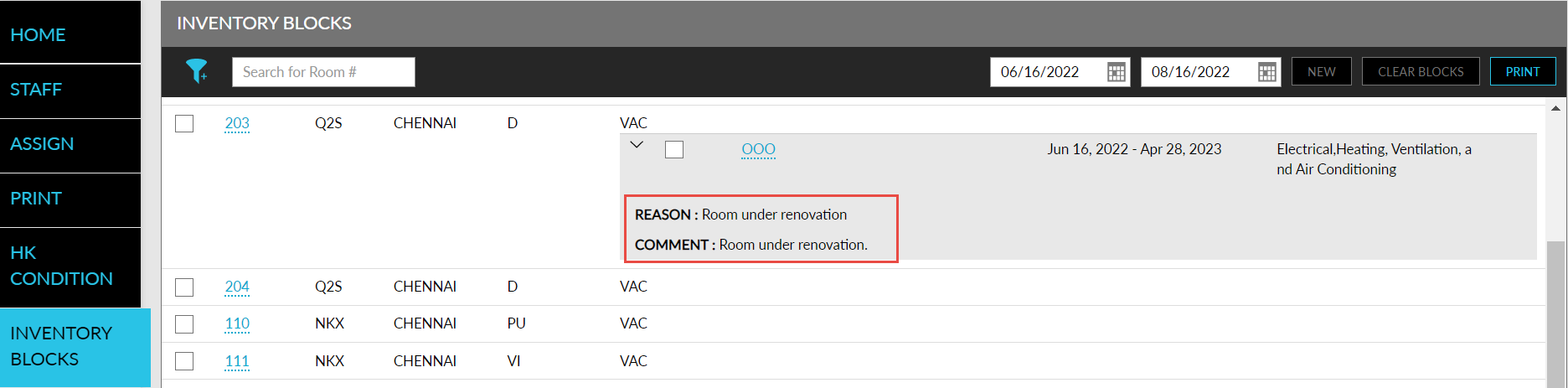
The following changes are made to the Housekeeping screen:
-
In the Inventory Blocks section, the comments entered and the reason selected when creating the inventory blocks are displayed within the inventory status accordion.
-
A new column, Maintenance Service, is added to display the maintenance service request selected when creating the inventory block.
Tape Chart Screen
The comments entered and the reason selected when creating an inventory block is displayed in the Tape Chart screen when users hover over the room blocks.
Out of Order Rooms Report
The following new columns are added to the Out of Order Rooms Report (Dynamic):
-
Comment - Displays the comments entered.
-
Reason - Displays the reason selected.
-
Maintenance Services - Displays the maintenance service requests created when creating an inventory block.
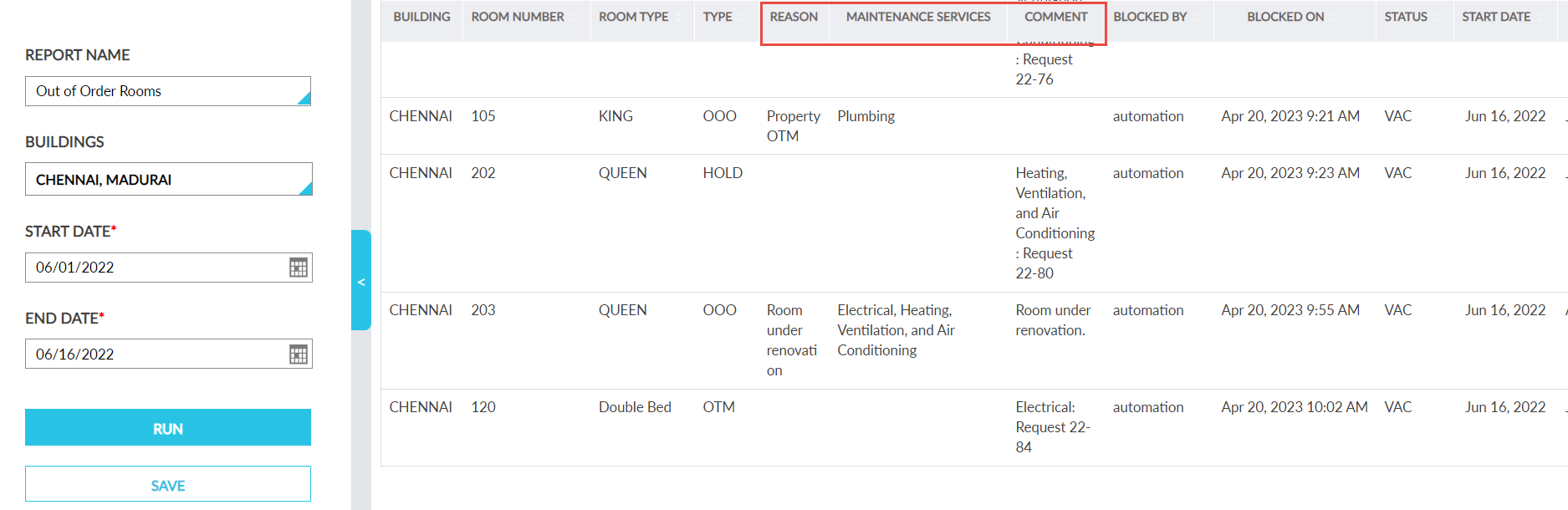
The reason is also displayed in the Out of Order Rooms Report (Legacy).
Room Activity Log
The comments entered, reason selected, and the maintenance service requests created when creating an inventory block are displayed in the Room Activity Log.
Reservation Summary Section
The following changes are made to the Reservation Summary (Reservation ➜ Reservation Summary ➜ SVC) section:
-
A new column, Scheduled, is added to the Room Maintenance Request grid in the Reservation Summary section to display the scheduled date and time of the created maintenance service requests.
-
The column Time is renamed to Time Created
-
The reason selected and comments entered will be displayed inside the Category accordion.
Maintenance Screen
-
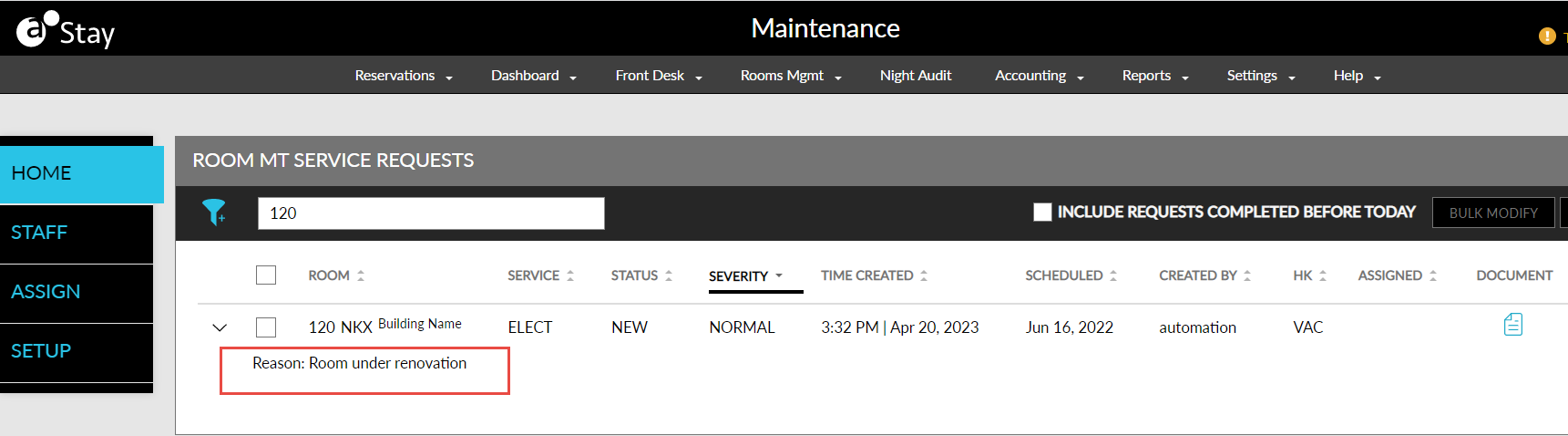
A new column, Scheduled, is added to the Room Maintenance Service Requests grid in the Home tab of the Maintenance screen to display the scheduled date and time of the maintenance service requests.
-
The column Time is renamed to Time Created
-
The reason selected and comments entered will be displayed inside the accordion.
-
The scheduled date and time, reasons and comments entered when creating maintenance service requests are displayed inside the accordion in the Unassigned Service Requests & Assigned Service Requests grid.
-
The scheduled date and time, reasons and comments entered when creating maintenance service requests are displayed in the Room Activity Log.
Configure Reasons at the Customer-Level
Navigate to Settings ➜ All Settings ➜ Back of House ➜ Reasons for Inventory Blocks/Maintenance Requests screen.
Click Configure For Tenant.
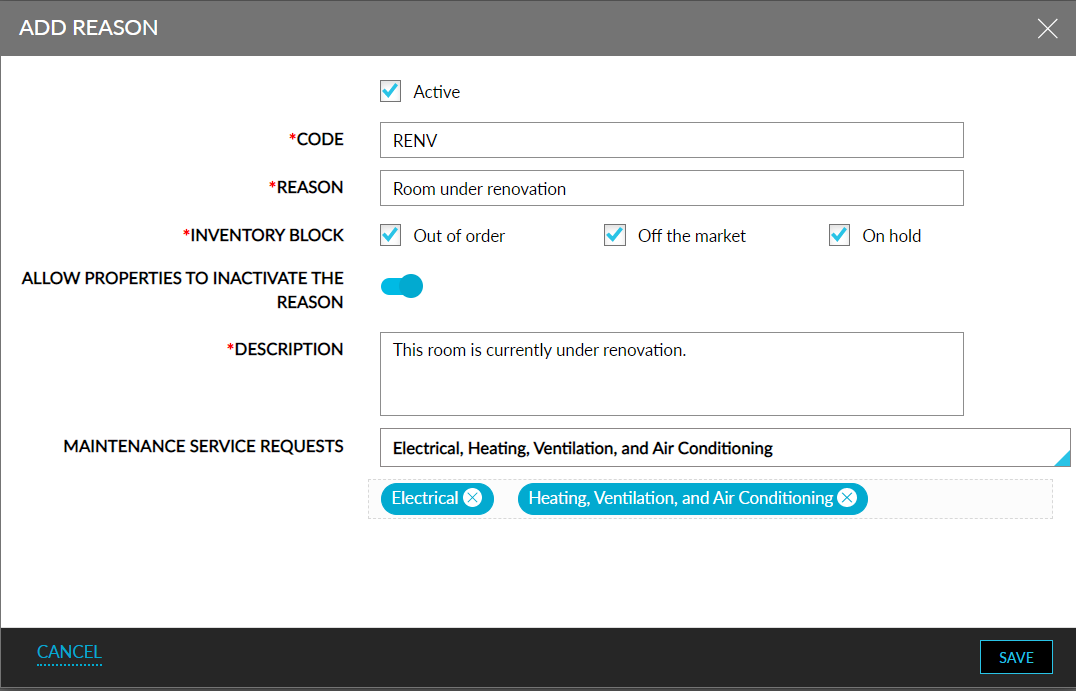
Click Add. The Add Reason screen will be displayed.
Refer to the following table and enter the values for the fields:
|
|
|---|---|
|
|
|
|
|
|
|
|
|
|
|
|
|
|
Click Save.
Stay Property Setup Tool
The reasons can also be configured via the Stay Property Setup Tool. A new sheet, InventoryBlockMaintenanceReasons, is added to the property import sheet. Refer to the following table to enter the values for the fields:
|
|
|---|---|
|
|
|
|
|
|
|
|
|
|
|
|
|
|
|
|
Users can import the sheet via the Stay Property Setup Tool (Settings ➜ All Settings ➜ General ➜ Property Import/Export), to import the reasons to Stay.